Creating & Updating Forms
To create a new form, use/forms create. This command supports the following options:
name- The name for the form (max 32 chars).description- A short description of the form (max 100 chars).channel- The channel that this form’s submissions will be posted in (text channel only).
/forms update. This command supports the following options:
form- The form ID to update (autocomplete).name- The name for the form (max 32 chars).enabled- If the form should be enabled (Yes or No).description- A short description of the form (max 100 chars).channel- The channel that the form’s submissions will be posted in (text channel only).
Form Questions
Each form can have up to 25 questions, here’s how to add, update, and remove questions. To add a question to a form, use/forms questions add. This command supports the following options:
form- The form ID to add a question to (autocomplete).name- The name of the question (max 100 chars).style- The style of the question (Short or Paragraph).required- If the question is required (Yes or No).min-length- The minimum length of the question’s answer.max-length- The maximum length of the question’s answer.placeholder- A placeholder answer for the question (max 100 chars).
/forms questions update. This command supports the same options as above.
To remove a question from a form, use /forms questions remove. This command supports the following options:
form- The form ID to remove a question from (autocomplete).question- The question ID to remove from the form (autocomplete).
Ping Roles
Ping roles are roles that Fyre will ping/mention when a new form submission is created. You can add or remove ping roles using/forms roles add type:Ping Role and /forms roles remove type:Ping Role.
Required Roles
Required roles are roles that a member requires to fill out the form. A member must have one of the required roles to fill out a form. You can add or remove required roles using/forms roles add type:Required Role and /forms roles remove type:Required Role.
Confirmation Prompt
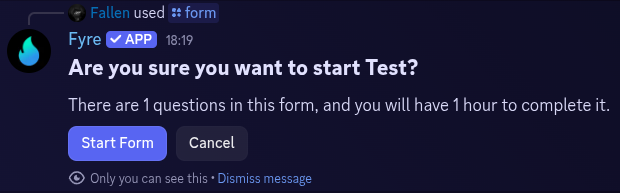
Every form has a confirmation prompt that is enabled by default, this is to prevent accidental form submissions from being created. Users will be shown this confirmation prompt whenever they attempt to start a form submission via a form panel or the/form command.
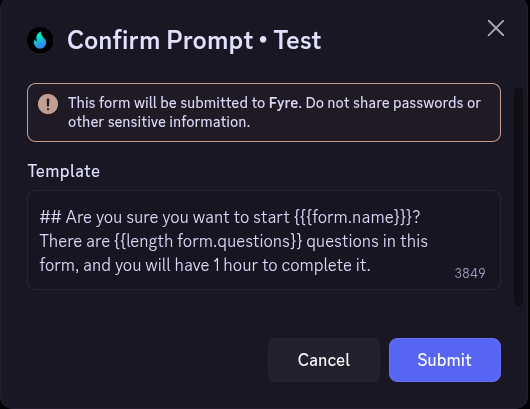
/forms confirmation.
This command support the following options:
form- The form ID to update (autocomplete).enabled- Whether the confirmation prompt is enabled for this form (Yes or No).delay- The delay in seconds a user must wait before starting the form (default: none, min: 5, max: 30).mode- The mode for displaying the confirmation prompt (Plain or Container, default: Plain).
Form Panels
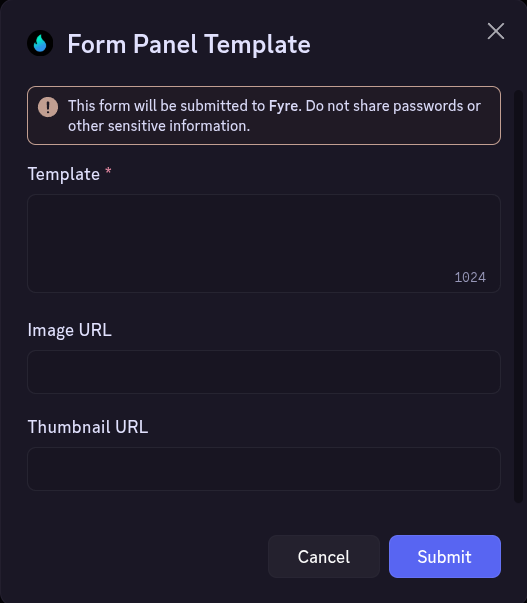
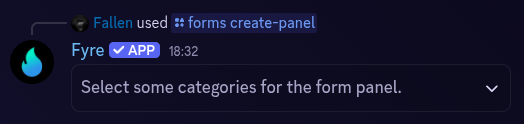
Just like tickets, you can create form panels. These panels can have buttons or a select menu for members to easily start form submissions. To create a form panel, use/forms create-panel. This command supports the following options:
type- The type of panel to create (Buttons or Select Menu).channel- The channel to send the panel in (text channels only).colour- A hex code colour to use in the panel.button-name- The name of the button if you’re making a one button panel.select-menu-placeholder- The placeholder text in the select menu if you’re making a select menu panel.